
AmazonUser
Amazon.in25 Jun 2016
Rs 991 for 4GB Memory card.Is it Made of Gold?
Is this Memory card made of Gold huh? Rs 991 for 4GB . I can get 64/128 GB for that price Read more Read less

We may earn a commission when you buy through these links. It never changes the price or the order.
Today's price against the prices it has sold for.
From 27 days of our own price history, across stores.
₹4,781
Out of stock at our last check
The nearest alternatives in this category and price range.
 Vital Tech 64GB Micro SD Card Class 10 UHS-3 High Speed Memory Card₹5,079Scored 67
 Lexar 633x 256GB Micro SD Card,microSDXC UHS-I Card SD Adapter,microSD Memory Card up to 100MB s Read,A1,Class 10,U3,V30,TF Card for Smartphones Tablets IP Cameras LMS0633256G-BNAAA₹5,406Scored 64
 Transcend TS1GCF133 1GB 133x Compact Flash Card₹5,699Scored 62
Ratings on stores (3,376)Reviews on Whydud (7)
Customer rating
4.6out of 5
3,376 ratings across stores
| 5★ | 77% | |
|---|---|---|
| 4★ | 13% | |
| 3★ | 7% | |
| 2★ | 1% | |
| 1★ | 2% |
71% verified purchases
AmazonUser
Amazon.in25 Jun 2016
Is this Memory card made of Gold huh? Rs 991 for 4GB . I can get 64/128 GB for that price Read more Read less
ashok prajapat
Amazon.in25 Aug 2017
It's to much price Read more Read less
808ALOHA
Amazon.in5 Mar 2026
Good purchase. Card hold a lot of memory. It does the job. Thank you for your business. Aloha Read more Read less
Dirk Schneider
Amazon.in20 Apr 2015
SD Karte kam sehr schnell an und ich konnte sie ohne probleme in meinem Handy einfügen. Ich würde mir die SD Karte mit mehr Speicherplatz holen wenn ich sie denn mal benötige. Read more Read less
Luc Joseph H Goulet
Amazon.in24 Jan 2026
Only way too operate my video goggles most the one ways too actually get a low g.card Read more Read less
Ali Julia
Amazon.in7 Feb 2013
I bought Sandsik 4G MicroSDHC card for LG 800G. The card worked well in the phone. I also tested the card and the SD adapter in my PC and the adapter worked well as well. The card and adapter came in bulk packaging as mentioned in title of the listing, this means in came in the plastic case enclosed in a plastic zip lock baggy. No blister pack. Overall, I am pleased with the memory card: good price and it works. Inserting memory into LG 800G had a couple tricky spots, so for other LG 800G owners I am including steps for inserting the SD Memory card into the phone. 1. SD memory card slot is located under the battery. This means that you first need to remove the cover by sliding it down. The first time I had to remove the cover it was a bit difficult, as the cover is very slippery and has no groves to hang on to. I finally was able to do it by using the grippy material used to open cans. The grippy material generated enough friction that the cover finally slid off. After removing the cover, you need to remove the battery. 2. The memory card slot is on the left side of the white SIM card. The gold bars on the card should face down towards the gold bars on the phone. The memory card goes under a metal holder. You need to lift the metal holder, place the memory card, and then lower the card holder, and push it down until it snaps in place. Note that lifting the holder for the first time requires some force. I used a tiny screwdriver to give me leverage to push it up. I am attaching a photo (which can be located by following 'customer photos' link under the main photo) which shows the holder in the up position, so you can see what you need to do to insert the memory card. 3. After the memory card is in place, you need to replace the battery and the phone cover, and power up the phone. 4. Now, you need to set your default memory to external, and tell the camera, the video recorder, and the voice recorder to use the external memory rather than the internal memory like before. 5. To set the default memory: - Tap the following sequence MENU - Settings - Phone - Memory Info - Primary storage settings - Tap on External memory (red check will appear) - There will be a FORMAT button at the bottom of the screen, tap on it - The phone will ask for a security code, enter 0000. Once you enter the security code, OK button will appear on the bottom of the screen. Click ok. Format takes about 1 second. 6. To set the camera: - Tap Camera icon on the main screen holding the phone vertically, turn the phone to horizontal position, as you turn you will see camera control setting appear on the screen. - Tap the gear icon which is on the lower left side of the screen. - The memory setting is on the second screen of camera settings, so you need to tap the slider on the right hand side (it will say 1/3, first page out of three) once you tap it will change to 2/3. - On the top row you will see a square called 'select storage'. By default it will look like a cell phone, once you tap it will look like a memory card. - Hit OK to save your change 7. To change the video camera: - Tap Camera icon on the main screen holding the phone vertically, turn the phone to horizon position, as you turn the camera controls will appear - Tap the gear looking icon on the bottom left - Now you need to switch from camera to video, which is done by sliding your finger from camera to video camera icon on the right hand side slider - If you do it correctly, you will see a red button appear where the video camera is. If you do it incorrectly, you will take a photo. It took me a few tries to get the pressure and location of where my finger slides correctly. - The storage setting is on the second page of the video camera, so you need to page down on the slider by tapping on 1/2. - Tap on 'Select storage' icon, and make sure you see a memory card, rather than the cell phone icon. - Click OK to save your change 8. To change the voice recorder - Voice recorder is on the second page of Settings. To get there select Menu - slide you finger right to left to page - tap on Voice recorder. - The top option is 'Storage', tap on it to change cell phone icon to memory card icon. - Click ok to save your change Ali Julia review Read more Read less
Tinytim
Amazon.in4 Dec 2017
Great Read more Read less
 Vital Tech 64GB Micro SD Card Class 10 UHS-3 High Speed Memory Card₹5,07967 · Good buy
 Lexar 633x 256GB Micro SD Card,microSDXC UHS-I Card SD Adapter,microSD Memory Card up to 100MB s Read,A1,Class 10,U3,V30,TF Card for Smartphones Tablets IP Cameras LMS0633256G-BNAAA₹5,40664 · Good buy
 Transcend TS1GCF133 1GB 133x Compact Flash Card₹5,69962 · Good buy
 Gigastone Micro SD Card 32GB,Camera Plus,MicroSDHC Memory Card for Nintendo-Switch,Smartpone,Roku,Full HD Video Recording,UHS-I U1 A1 Class 10,up to 90MB s,with SD Adapter₹4,623
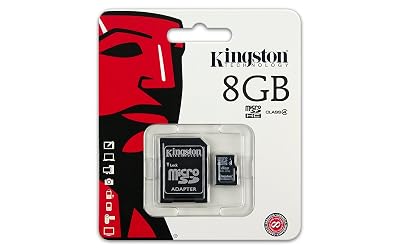 Kingston 8GB Class 4 MicroSDHC Card Flash Memory with SD Adapter SDC4 8GB₹4,018
 MMOMENT Micro SDXC Card,A1,UHS-I,U3,Class 10 Compatible,Read Speed Up to 100 MB s,Write Speed Up to 70 MB s,SD Adapter Included 256GB,Orange High Speed - A1,U3,V30₹4,612
 128GB TF Memory Card FAT32 Format Class 10 High Speed Reading Writing 24 7 Recording for Security Camera Dash Cam and More₹4,644Same category, similar price
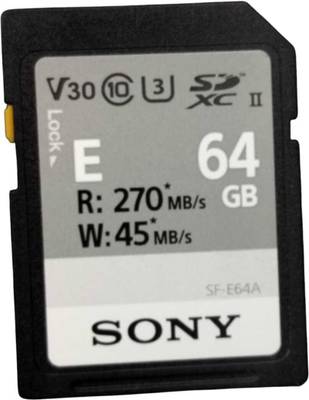 Sony Sf-e64a Hi- Speed Memory Card 64gb Read Speed 270mb/Ps Write Speed 45mb/Ps Sf-e64a 64 Gb Microsdxc Class 10 270 Mb/S Memory Card Compatible Camer₹3,91267 · Good buy
FREEZE2TRIM
₹5,079
 64 · Good buy
 64 · Good buy62 · Good buy
 62 · Good buy
Transcend
₹6,199